When something in ServiceTitan isn’t working the way you expect, the answer is often hiding in one place: settings.
Alishia Conley, Lead Consultant at Powerhouse Consulting Group, describes settings as the area that controls most of the outcomes you expect everywhere else. Conley has more than 10 years in the trades, working in HVAC, plumbing, generators, and water treatment. She has been a dispatcher, membership coordinator, admin, office manager, regional trainer, and director of operations. She is also an expert in ServiceTitan reporting.
The tricky part isn’t turning settings on. It’s knowing what they affect. Here’s how to find your way around ServiceTitan settings, protect them, and keep them healthy.
Click the settings gear up by your user icon. You’ll see the main groups of settings, and each one opens into smaller sections.
Two ways to get around:
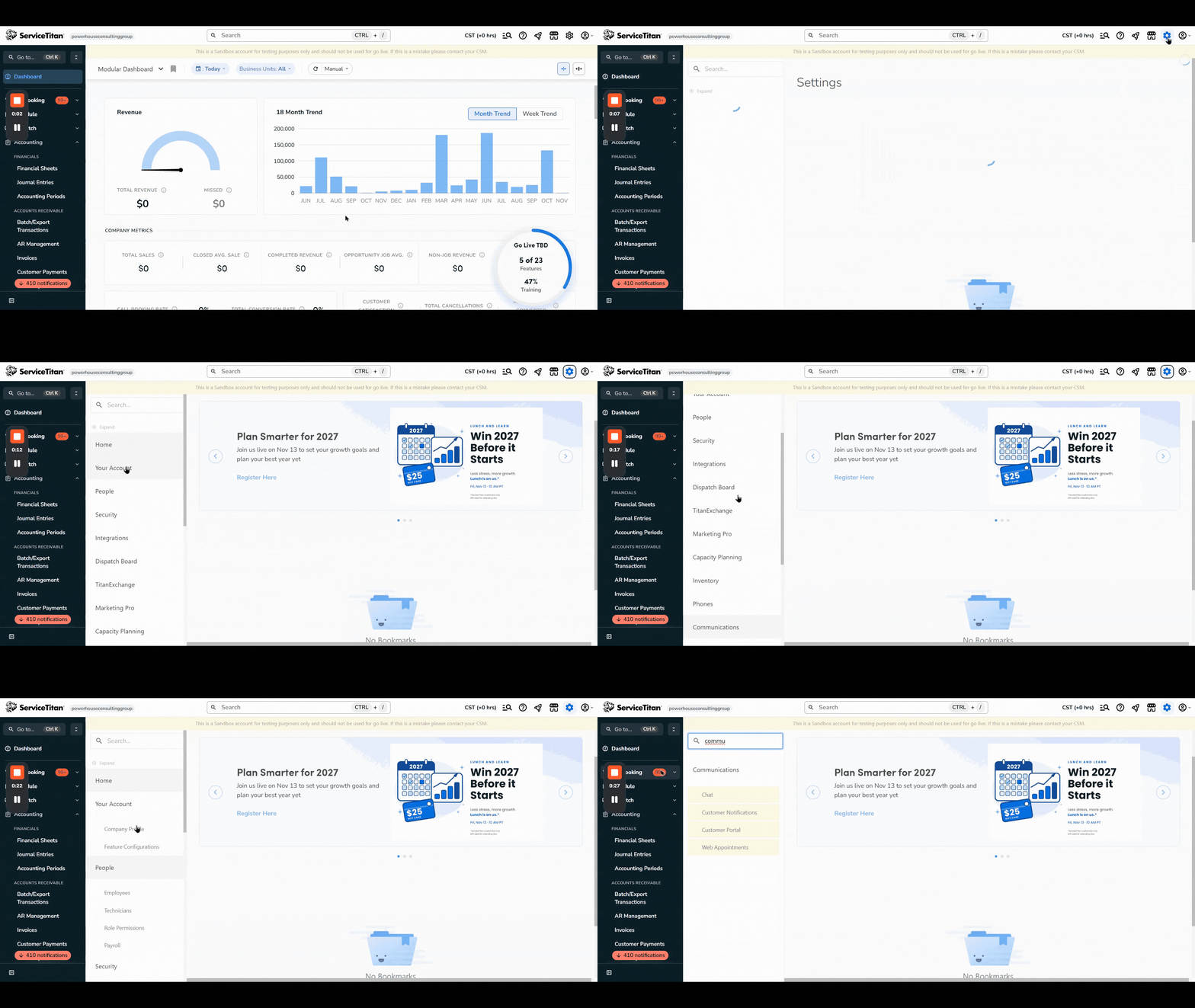
A few settings that can surprise people:
Settings are laid out by feature, and there’s a group for almost everything. Some of the big ones:
Here’s the catch – changing a setting in one place can change how things work somewhere else. That’s why Conley wants teams to understand what a setting does before they change it.
With this many settings, one wrong click can cause real damage. The fix is permissions. (Technicians can’t get to settings at all. The mobile app is set up separately.)
Conley’s best practice: set permissions by role, not by person.
For extra peace of mind, check the audit trail in settings. It’s a newer feature that shows what changed and on which type of record.
These are the areas Conley most often sees overlooked.
Project settings. The project module is getting more popular, especially for new construction and commercial work. Many companies expect it to work right out of the box.
Project settings control labels and what’s visible for each project type. Set them up before your team starts using projects.
Inventory and purchasing. If you’re seeing job costs counted twice, check your inventory and purchasing configurations. There’s a setting that controls it, and a lot of people don’t know it’s there. It can affect other areas too, so learn what it does before you change it.
Recall, warranty, and lead usage instructions. This newer feature is in your job booking settings. ServiceTitan includes default instructions for when to book a recall, warranty, or lead, but they’re written for HVAC, plumbing, and electrical. You can rewrite them to match your own process. For example: “If the customer had service within the last 30 days, book as a recall.” CSRs see the instructions in a help bubble while they book. (The recall time frame itself is still a ServiceTitan default.) Conley recently set these up for a client’s generator division.
Content portal. This is a library your technicians can open any time. Ideas:
Teams management. Found in your dispatch board settings, this is where you build your technician teams. It’s been upgraded a lot in the last year or so. You can now drag and drop teams to reorder them on the dispatch board, and there’s an audit trail at the bottom. Conley called it one of the best features ServiceTitan has added recently.
Feature configurations change how your account works. Some you can turn on yourself. Others need a change request that goes to your CSM or ServiceTitan support.
Most are plug and play. But before you request one, Conley says to determine whether it will interfere with any other configurations you currently have on.
Here’s a known example. If you turn on the estimate and invoice template configuration while multi-print view is on, your print and email screens can show up blank.
Whether you use QuickBooks Desktop, QuickBooks Online, or Sage, check your accounting settings regularly:
You’re connecting two programs, and both get updates. When an integration changes, you can lose the connection without noticing.
Settings aren’t set-it-and-forget-it. Here’s the rhythm Conley recommends for office managers and leadership:
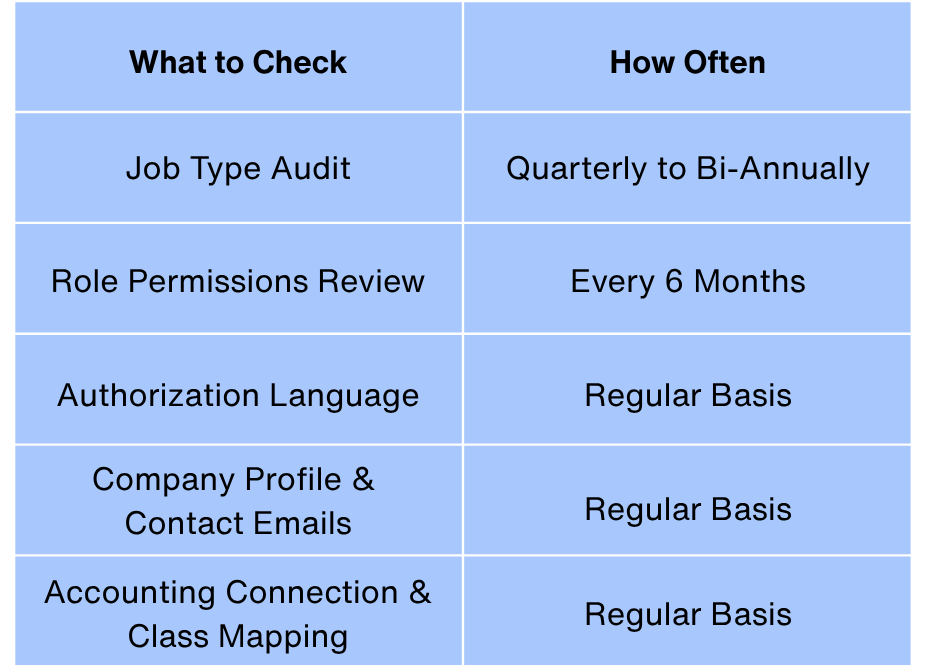
A five-person office may not need a formal permissions review. A company with 10 departments and 150 employees does.
Not sure your settings are working for you? Powerhouse Consulting Group helps skilled trades companies audit and set up ServiceTitan, from job types and permissions to feature configurations, so every part of the system works the way you expect. [Let’s talk.]